• Fixing Upgrade Problems in SharePoint SE 2025

    Recently I have upgraded another client to SharePoint SE version, from SharePoint 2013.

    The initial upgrade we did was with the SP SE 2025 September CU and all upgrade went through smoothly.

    After the testing phase and before production, we installed November 2025 CU for SharePoint SE. Once we started to mount Content databases to SharePoint Servers, errors began to appear.

    The type initializer for ‘Microsoft.SharePoint.OnPrem.Flighting.ECSSPFlightDataProvider’ threw an exception.

    Upgrade error log was full of errors

    Timestamp Process TID Area Category EventID Level Message Correlation
    12/18/2025 17:25:35.07 powershell (0x3E68) 0x1DD4 SharePoint Foundation Upgrade SPFeatureDefinition aj2bj INFO SPWeb Url=https://portal 4c47e4a1-0320-6034-b7db-4f45e0e22ccc
    12/18/2025 17:25:35.07 powershell (0x3E68) 0x1DD4 SharePoint Foundation Upgrade SPFeatureDefinition aj2bj ERROR Feature upgrade action ‘CustomUpgradeAction.LocalizeVisibleMicroFeedFieldDisplayNames’ threw an exception upgrading Feature ‘MySiteMicroBlog’ (Id: 15/’ea23650b-0340-4708-b465-441a41c37af7′) in Web ‘https://portal’: The type initializer for ‘Microsoft.SharePoint.OnPrem.Flighting.ECSSPFlightDataProvider’ threw an exception. 4c47e4a1-0320-6034-b7db-4f45e0e22ccc
    12/18/2025 17:25:35.07 powershell (0x3E68) 0x1DD4 SharePoint Foundation Upgrade SPWebWssSequence2 ajy85 INFO SPWeb Url=https://portal 4c47e4a1-0320-6034-b7db-4f45e0e22ccc
    12/18/2025 17:25:35.07 powershell (0x3E68) 0x1DD4 SharePoint Foundation Upgrade SPWebWssSequence2 ajy85 ERROR Feature upgrade incomplete for Feature ‘MySiteMicroBlog’ (Id: 15/’ea23650b-0340-4708-b465-441a41c37af7′) in Web ‘https://portal’. Exception: The type initializer for ‘Microsoft.SharePoint.OnPrem.Flighting.ECSSPFlightDataProvider’ threw an exception. (Inner Exception: External component has thrown an exception.) 4c47e4a1-0320-6034-b7db-4f45e0e22ccc
    12/18/2025 17:25:35.37 powershell (0x3E68) 0x1DD4 SharePoint Foundation Upgrade SPManager ar143 INFO No context object 4c47e4a1-0320-6034-b7db-4f45e0e22ccc
    12/18/2025 17:25:35.37 powershell (0x3E68) 0x1DD4 SharePoint Foundation Upgrade SPManager ar143 ERROR Upgrade retry count [0]. 4c47e4a1-0320-6034-b7db-4f45e0e22ccc
    12/18/2025 17:25:35.37 powershell (0x3E68) 0x1DD4 SharePoint Foundation Upgrade SPManager ar144 INFO No context object 4c47e4a1-0320-6034-b7db-4f45e0e22ccc
    12/18/2025 17:25:35.37 powershell (0x3E68) 0x1DD4 SharePoint Foundation Upgrade SPManager ar144 ERROR Upgrade Requested by [SHAREPOINT\system]. 4c47e4a1-0320-6034-b7db-4f45e0e22ccc

    After researching and trying to figure out, what could be the issue, I came accros article on Stefan’s blog https://blog.stefan-gossner.com/2025/09/11/trending-issue-sharepoint-fixes-fail-to-install-after-installation-of-september-2025-cu/

    Although it does not specifically mention the issue with mounting a database and receiving errors, but it made enough sense to check it out. Sure enough the “System account” was member of WSS_WPG group
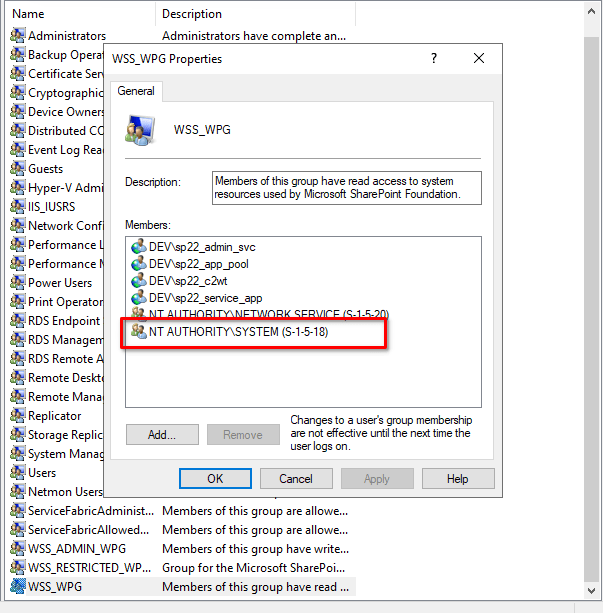
    After removing the account from WSS_WPG group, I ran command

    Upgrade-SPContentDatabase -Name databaseToUpgrade -WebApplication http://portal

    Sure enough, database upgrade went smoothly after that.

    Hopefully, this helps someone when upgrading database from earlier versions of SharePoint.

  • SharePoint SE Upgrade: Resolving Workflow Failures

    Recently I have upgraded another client to SharePoint Subscription Edition from version 2013. As many others, this one as well had a lot of workflows running in old environment in the SharePoint 2010 workflow mode.

    After the upgrade, workflows were not running with error “Failed to start”. Of course there were errors in the ULS logs like described in this article:

    https://blog.stefan-gossner.com/2024/12/11/resolved-trending-issue-problems-with-workflows-after-applying-september-2024-cu-for-sharepoint-2016-2019-se/

    But the issue was not actually resolved just by adding the entries to web.config and owstimer.exe.config. By the way, you can find owtimer.exe.config at path:

    C:\Program Files\Common Files\microsoft shared\Web Server Extensions\16\BIN

    So the ULS logs contained this entries

    12/18/2025 19:14:11.17        w3wp.exe (0x2464)        0x3A34        SharePoint Foundation        Legacy Workflow Infrastructure        c42q0        High        Potentially malicious xoml node:

    <ns0:RootWorkflowActivityWithData x:Class=”Microsoft.SharePoint.Workflow.ROOT” x:Name=”ROOT” xmlns=”http://schemas.microsoft.com/winfx/2006/xaml/workflow&#8221; xmlns:ns1=”clr-namespace:Microsoft.SharePoint.WorkflowActions.WithKey;Assembly=Microsoft.SharePoint.WorkflowActions, Version=15.0.0.0, Culture=neutral, PublicKeyToken=null” xmlns:x=”http://schemas.microsoft.com/winfx/2006/xaml&#8221; xmlns:ns0=”clr-namespace:Microsoft.SharePoint.WorkflowActions;Assembly=Microsoft.SharePoint.WorkflowActions, Version=15.0.0.0, Culture=neutral, PublicKeyToken=null”>   <ns0:RootWorkflowActivityWithData.WorkflowFields>    <ns0:WorkflowDataField Type=”System.String” Name=”__list” />    <ns0:WorkflowDataField

    As you can see, the error log states that the issue is actually assembly version 15.0.0.0 and not 16.0.0.0. as the Stefan’s blog post states.

    Whenever you upgrade to SharePoint SE and if you see the workflows “Failed to start”, add the following to your web.config and owstimer.exe.config and you should be fine.

    <authorizedType Assembly="Microsoft.Office.Access.Server.Application, Version=15.0.0.0, Culture=neutral, PublicKeyToken=71e9bce111e9429c" Namespace="Microsoft.Office.Access.Server.Macro.Runtime" TypeName="*" Authorized="True" />

    <authorizedType Assembly="System, Version=4.0.0.0, Culture=neutral, PublicKeyToken=b77a5c561934e089" Namespace="System.CodeDom" TypeName="*" Authorized="True" />

    <authorizedType Assembly="Microsoft.SharePoint.WorkflowActions, Version=16.0.0.0, Culture=neutral, PublicKeyToken=null" Namespace="Microsoft.SharePoint.WorkflowActions.WithKey" TypeName="*" Authorized="True" />

    <authorizedType Assembly="Microsoft.SharePoint.WorkflowActions, Version=16.0.0.0, Culture=neutral, PublicKeyToken=71e9bce111e9429c" Namespace="Microsoft.SharePoint.WorkflowActions.WithKey" TypeName="*" Authorized="True" />

    <authorizedType Assembly="Microsoft.SharePoint.WorkflowActions, Version=15.0.0.0, Culture=neutral, PublicKeyToken=null" Namespace="Microsoft.SharePoint.WorkflowActions" TypeName="*" Authorized="True" />

    <authorizedType Assembly="Microsoft.SharePoint.WorkflowActions, Version=15.0.0.0, Culture=neutral, PublicKeyToken=null" Namespace="Microsoft.SharePoint.WorkflowActions.WithKey" TypeName="*" Authorized="True" />

    Hope this helps someone when upgrading SharePoint.

  • back in 2013 a web part was published on Codeplex which was called “ClaimsViewerWebPart”. I do not know who the author was, but since I stiil find it a really useful web part I decompiled the code and made a new project to support SharePoint 2019 and Subscription Edition.

    Installation

    To install a solution you need to open SharePoint Management Shell and run commands

    Add-SPSolution -LiteralPath c:\temp\Xnet.SP.ClaimsViewerWebPart.wsp
     
    Install-SPSolution -Identity Xnet.SP.ClaimsViewerWebPart.wsp -GACDeployment -WebApplication http://[mywebapp]
    

    Activation

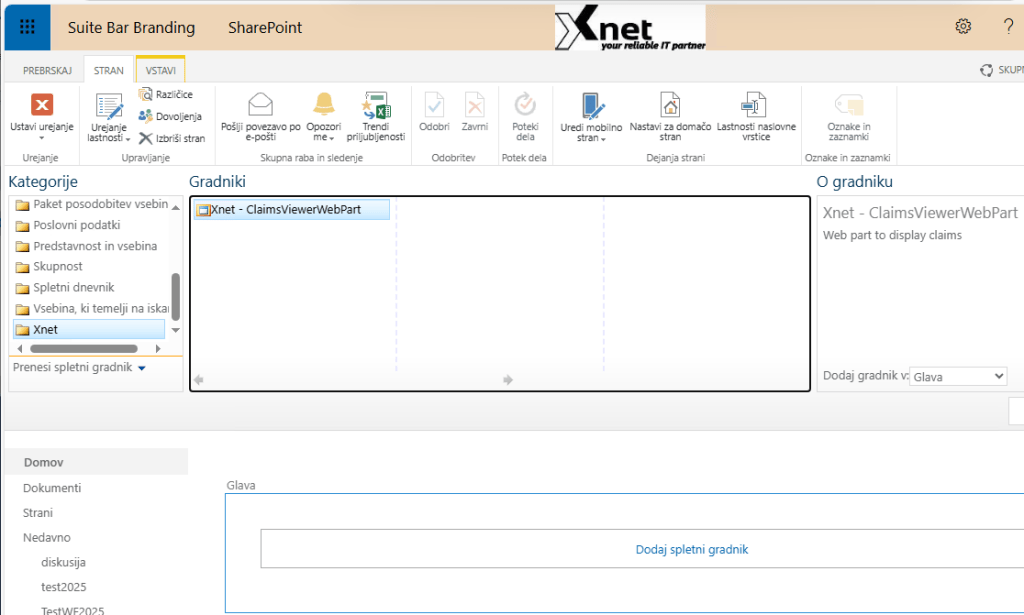
    Once solution is installed, you can activate the web part and add it to your page.

    In site collection administration, you need to find “Xnet – ClaimsViewerWebPart” feature and activate it.

    Once activated, you can create a new page and add a web part that is found under Xnet category

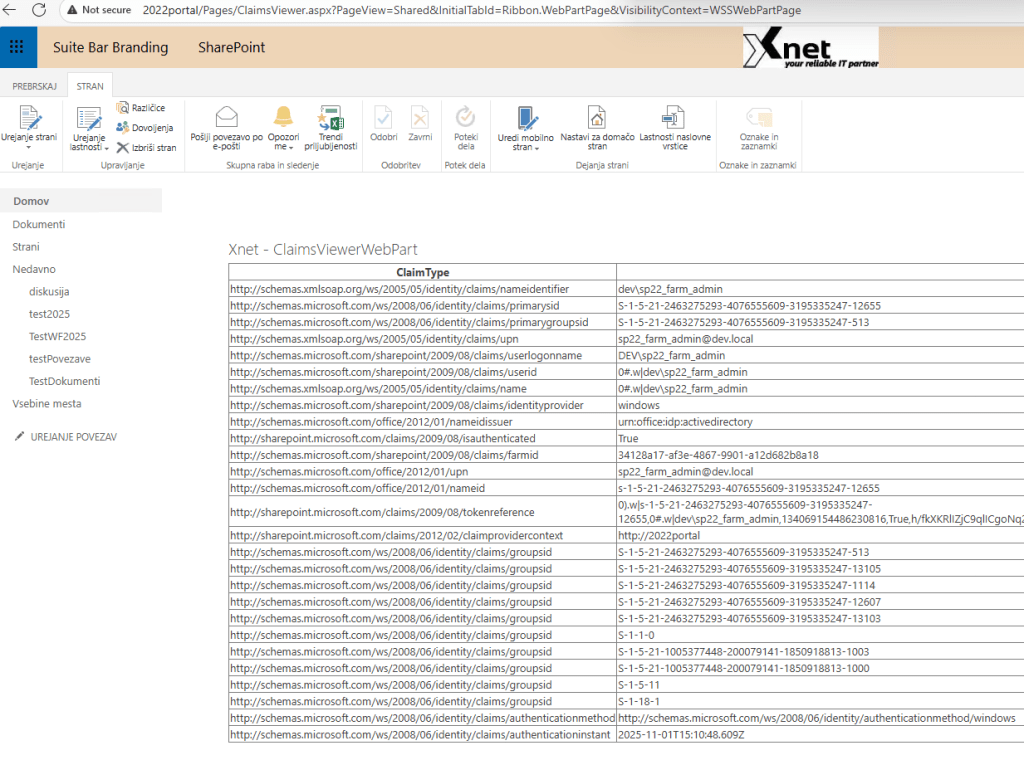
    When web part is added to the page, it will render all claims related to the currently logged on user account.

    This web part is really useful when using SharePoint with OIDC and any other Idp which is not SharePoint default (e.g. Windows).

    Source code

    You can find source code for the web at https://github.com/Rob3r70/ClaimsViewerWebPart

    Direct download WSP

    Direct wsp download is available at: https://github.com/Rob3r70/ClaimsViewerWebPart/blob/main/Xnet.SP.ClaimsViewerWebPart.wsp

  • I have created a github repository where I uploaded a few scripts I use to manage SharePoint On-prem environments.

    Github repository can be found at https://github.com/Rob3r70/SharePoint

  • Not too long ago, I had a project where we were upgrading a client environment from SharePoint 2016 to Subscription Edition and one of the tasks was to move to new URL as well. All good when we arrived at the part where we needed to show social comments on pages. SharePoint used to have really nice PowerShell cmdlet called “Move-SPSocialComment” but apparently in SPSE it does not work any more.

    So without being to lazy I had to reverse engineer what this cmdlet does and wrote my own function based on the source code.

    Exporting current links from database

    First task was to get all URLs of pages where social comments were posted at. That was easily achieved with a select statement on a UPS Social database.

    Next, a mapping needed to be done and a new column in Excel was added to replace old URL with new URL.

    After that, a script was executed to replace links in database. This code was reverse engineered from SharePoint cmdlet and uses the same code as the original.

    
    $dbServer="dbserver"
    $socialDb="SP2022_SA_UPS_Social"
    $path="c:\temp\socialLinks.csv"
    
    $csv=import-csv $path
    
    
    # Define connection string (modify as needed)
    $connectionString = "Server=$dbServer;Database=$socialDb;Integrated Security=True"
    
    $upsProxy=Get-SPServiceApplicationProxy | ?{$_.typename -like "*user*"}
    # Define parameters
    $partitionID = [Guid]"0C37852B-34D0-418e-91C6-2AC25AF4BE5B"  # Replace with actual partitionID
    $correlationId = [Guid]::NewGuid() # Replace with the actual correlation ID logic
    
    
    foreach($c in $csv){
    		
    	$oldUrl = $c.old # Replace with actual old URL
    	$newUrl = $c.newUrl # Replace with actual new URL
    
    	# Create SQL connection
    	$connection = New-Object System.Data.SqlClient.SqlConnection($connectionString)
    	$connection.Open()
    
    	# Create SQL command
    	$command = $connection.CreateCommand()
    	$command.CommandText = "dbo.proc_SocialData_MergeSocialNotes"
    	$command.CommandType = [System.Data.CommandType]::StoredProcedure
    
    	# Add parameters
    	$command.Parameters.Add((New-Object System.Data.SqlClient.SqlParameter("@partitionID", [System.Data.SqlDbType]::UniqueIdentifier))).Value = $partitionID
    	$command.Parameters.Add((New-Object System.Data.SqlClient.SqlParameter("@correlationId", [System.Data.SqlDbType]::UniqueIdentifier))).Value = $correlationId
    	$command.Parameters.Add((New-Object System.Data.SqlClient.SqlParameter("@oldUrl", [System.Data.SqlDbType]::VarChar, 255))).Value = $oldUrl
    	$command.Parameters.Add((New-Object System.Data.SqlClient.SqlParameter("@newUrl", [System.Data.SqlDbType]::VarChar, 255))).Value = $newUrl
    
    	# Output parameter
    	$successParam = New-Object System.Data.SqlClient.SqlParameter("@success", [System.Data.SqlDbType]::Bit)
    	$successParam.Direction = [System.Data.ParameterDirection]::Output
    	$command.Parameters.Add($successParam)
    
    	# Execute command
    	$ex=$command.ExecuteNonQuery()
    
    	# Check output parameter value
    	$success = [bool]$command.Parameters["@success"].Value
    
    	# Close connection
    	$close=$connection.Close()
    
    	# Return success value
    	if( $success){
    		write-host "Migrate $oldUrl to $newUrl success"
    	}
    	else{
    		write-host "Migrate $oldUrl to $newUrl error" -foregroundcolor red
    	}
    }
    

    Hope it helps someone…

  • I have always struggled with SPMT PowerShell because the use is not really intuitive and comparing to UI tool it does not offer so many options. One of the things that really bothered me was hot to migrate a SharePoint web or sub web to a new site collection and I found out that only option is to use JSON tasks to be able to achieve this.

    # Path to the CSV file with source-target pairs
    $csvPath = "C:\temp\Allwebs.csv"
    # Import CSV and specify column headers
    $pairs = Import-Csv -Path $csvPath -Delimiter ";"
    
    # Define common settings for each task
    $settings = @{
        MigrateFileVersionHistory = $true
        KeepAllVersions = $true
        MigrateHiddenItems = $true
        PreservePermission = $true
        EnableIncremental = $true
        MigrateOneNoteNotebook = $true    
    }
    
    
    # Initialize task list
    $tasks = @()
    
    # Build tasks from CSV input
    foreach ($pair in $pairs) {
        $task = @{
            SourcePath = $pair.SourcePath
            TargetPath = $pair.TargetPath
            Settings = $settings
    		Items=@{ SubSites = @() }
        }
        $tasks += $task
    }
    
    # Wrap in the main JSON structure
    $jsonObject = @{ Tasks = $tasks }
    
    # Convert to JSON string with depth for nested objects
    $jsonOutput = $jsonObject | ConvertTo-Json -Depth 5
    
    # Output JSON to file
    $outputPath = "C:\temp\migration_tasks-1.json"
    $jsonOutput | Out-File -Encoding UTF8 -FilePath $outputPath
    
    Write-Host "Migration JSON file created: $outputPath"
    

    This code goes through a list of SharePoint webs that you intent to migrate and creates a JSON task to initiate the migration.

    After you have the JSON file created, you can actually use SPMT PowerShell module and start you migration. The script is as follows:

    Import-Module Microsoft.SharePoint.MigrationTool.PowerShell
    
    
    $onpremCred=Get-Credential -Message "Enter On-prem creds"
    $spoCred=Get-Credential -Message "Enter SPO Creds"
    
    
    #Register the SPMT session with SPO credentials#
    Register-SPMTMigration -SPOCredential $spoCred -Force -MigrateAllSiteFieldsAndContentTypes $true -MigrateFileVersionHistory $true -KeepAllVersions $true `
            -AutomaticUserMapping $true -PreserveUserPermissionsForSharePointSource $true -MigrateSiteSettings ONLY_TITLE_LOGO -WorkingFolder C:\SPMT -LookupReferencePolicy FIND_ALL_REFERENCE `
            -DisableNoScriptDuringMigration $true -MigrateNavigation $true
    
    
    $jsonItems = Get-Content -Raw -Path  "C:\temp\migration_tasks-1.json" | ConvertFrom-Json
    
    ForEach ($taskItem in $jsonItems.Tasks)
    {
        $jsonString = ConvertTo-Json $taskItem -Depth 100
        Add-SPMTTask -JsonDefinition $jsonString -SharePointSourceCredential $onpremCred
    }
    
    
    $timer=[System.Diagnostics.Stopwatch]::StartNew()
    $timer.Start()
    
    
    Start-SPMTMigration -NoShow
    
    $session = Get-SPMTMigration


    # Query migration status every 5 seconds until migration is finished
    while ($session.Status -ne "Finished")
    {
        Write-Host "Session status: $($session.Status) | Task count: $i" -BackgroundColor Yellow -ForegroundColor Black
        $i=1
        # Query migration progress of each tasks
        Foreach ($taskStatus in $session.StatusOfTasks)
        {  
            if($($taskStatus.MigratingProgressPercentage) -ne 100){
              
                Write-Host "$($taskStatus.SourceURI ) => $($taskStatus.TargetURI) Complete: $($taskStatus.MigratingProgressPercentage)% | Scanned: $($taskStatus.NumScannedTotalFiles) | ToMig: $($taskStatus.NumFileWillBeMigrated) | ActualMig: $($taskStatus.NumActuallyMigratedFiles)"
                Add-Content -Value "$($taskStatus.SourceURI ) => $($taskStatus.TargetURI) Complete: $($taskStatus.MigratingProgressPercentage)% | Scanned: $($taskStatus.NumScannedTotalFiles) | ToMig: $($taskStatus.NumFileWillBeMigrated) | ActualMig: $($taskStatus.NumActuallyMigratedFiles)" `
                            -Path "C:\SPMTLog\MigLog-$(Get-Date -uformat "%Y-%m-%d").txt"
                $i++
           }
    
        }
        Write-Host "$("-"*50)" -BackgroundColor Yellow -ForegroundColor Black
        Start-Sleep -Seconds 60
    }
    $timer.Stop()
    
    $timer.Elapsed
    

    Hope it helps someone with SPMT migrations.

  • I intend to use this blog site to write about my findings and learnings with SharePoint OnPrem and SharePoint Online