In today’s digital environment, managing SharePoint effectively is critical to ensuring security, compliance, and optimal use of data. By leveraging the advanced features of Microsoft 365 Copilot and SharePoint Advanced Management, organizations can reduce the risk of oversharing, improve access control, and optimize search experiences. In this article, we’ll review the configuration steps and recommendations for advanced SharePoint management.
1. Prepare SharePoint for integration with Copilot
To successfully integrate Microsoft 365 Copilot into SharePoint Online, it’s critical that sharing and access settings are configured correctly. This reduces the risks associated with unauthorised access or inadvertent disclosure of sensitive data.
Steps to proceed:
To update tenant-level sharing settings:
- Disable broad-based rights such as “Everyone except external users” to prevent uncontrolled sharing.
- Use the PowerShell command:
- Set-SPOTenant -ShowEveryoneExceptExternalUsersClaim $false
- This command removes the ‘Everyone except external users’ option from the people selector, which reduces the risk of oversharing.
To enable restricted search in SharePoint:
- Limit your search to a specific list of allowed SharePoint sites (up to 100 sites, including hubs).
- Activate restricted search using the command:
- Set-SPOTenantRestrictedSearchMode -Mode Enabled
- Add allowed places to the list:
- Add-SPOTenantRestrictedSearchAllowedList -SitesList @(“https://contoso.sharepoint.com/sites/Marketing”, “https://contoso.sharepoint.com/sites/Benefits”)
or use a CSV file:
Add-SPOTenantRestrictedSearchAllowedList -SitesListFileUrl C:\Users\admin\Downloads\UrlList.csv
- This ensures that only approved seats appear in the organizational search and Copilot experience
- What you need to be careful about here is because it also limits the search engine’s access to SharePoint sites, which means that search results are not displayed from these sites.
To set access requirements at the site level:
- Enable site-specific access requests for site owners to review and grant access.
- You can set this up in the SharePoint admin center under each site’s settings.
Verification of permissions and access:
- Regularly check permissions and access to sites in the SharePoint admin center to ensure that privileges are assigned correctly.
Recommendations:
- Regularly review and update your sharing settings to prevent accidental oversharing.
- Involve site owners in the access granting process to ensure accountability.
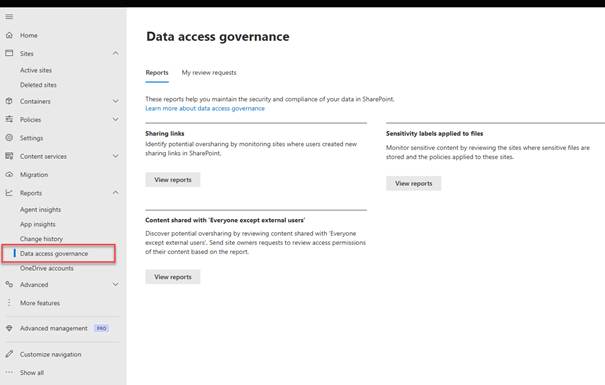
Figure 1: SharePoint admin center for reports on file sharing and usage of “Everyone except external users”.
2. SharePoint Advanced Management Features
SharePoint Advanced Management provides additional content management features to help organizations prepare for integration with Copilot. These features include restricting access, preventing oversharing, and cleaning up unused sites.
Key features and configuration:
To restrict access at the site level:
- Restrict access to SharePoint sites to only users in a specific group.
- Activate the access restriction with the command:
- Set-SPOTenant -EnableRestrictedAccessControl $true
- Add restricted groups:
- Set-SPOSite -Identity <siteurl> -AddRestrictedAccessControlGroups <comma separated group GUIDs>
- This prevents unauthorized access and restricts sharing with users outside of specific groups.
Restricted Content Discovery:
- Identify sites at high risk of oversharing and protect them with limited content discovery.
- Activate with the command:
- Set-SPOSite -Identity <siteurl> -RestrictContentOrgWideSearch $true
- This setting prevents the content of these sites from appearing in organizational search or in Microsoft 365 Copilot Business Chat without affecting existing permissions.
To manage unused sites:
- Regularly scan and clean unused sites to reduce the risk of outdated or uncontrolled content.
- Use the site activity reports and oversharing reports provided by SharePoint Advanced Management.
To establish a restricted access policy:
- Establish a restricted access policy for business-critical sites to provide an extra layer of security.
Recommendations:
- Conduct regular site access reviews to ensure that all sites have valid owners.
- Use site activity reports to identify unused sites and archive or delete them.
- Restrict access to sensitive sites to only certain groups, and check the membership of those groups regularly.
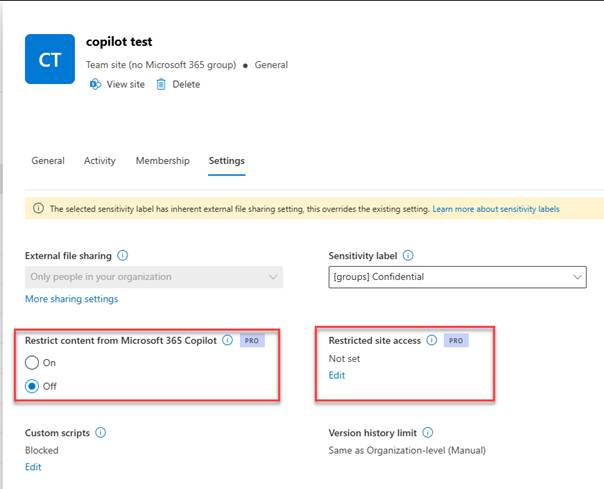
Figure 2: Configure site-level restricted access in SharePoint.
3. Restricted SharePoint Search
Restricted search in SharePoint allows organizations to specify a list of allowed sites that are available for organizational search and Copilot experiences. This reduces the risk of revealing sensitive information and improves the quality of search results.
Configuration steps:
To activate Restricted Search:
- Enable limited search by using the command:
- Set-SPOTenantRestrictedSearchMode -Mode Enabled
- Add sites to your allowlist:
- Add-SPOTenantRestrictedSearchAllowedList -SitesList @(“https://contoso.sharepoint.com/sites/Marketing”, “https://contoso.sharepoint.com/sites/Benefits”)
- If you have multiple sites, use a CSV file for bulk adding.
Understanding the impact on user experience:
- Search results are limited to allowed sites, frequently visited sites, sites that users have permissions to, and recently accessed files.
- The restriction can affect the overall search experience, even for users who don’t use Copilot.
Recommendations:
- Carefully select sites in the allowlist to ensure that only business-critical or frequently used sites are included.
- Regularly update the list of allowed positions to reflect changes in organizational structure or needs.
- Notify users of changes to the search experience to reduce confusion.
Conclusion
SharePoint advanced management using Microsoft 365 Copilot and SharePoint Advanced Management enables organizations to better control content, reduce the risk of oversharing, and improve the search experience. By following the configuration steps and recommendations described above, organizations can ensure a secure, compliant, and efficient use of SharePoint and Copilot. Regularly checking your settings, using limited search, and educating your users are key to long-term success.
In case you are also interested in Microsoft partner solutions, for the overview or management of the M365 environment, such as e.g. DeliverPoint from LightningTools or SyskitPoint from Syskit, you can contact us and we will arrange a demo.
 Rob3r70 SharePoint Blog
Leave a comment